How to Host a Blooket Game: Complete Guide for Teachers
Blooket can make classroom review more fun and active. Instead of asking students to answer questions on a worksheet, teachers can turn the same questions into an exciting game. Students answer questions, earn points, and take part in different challenges.
Hosting a Blooket game is also simple. You need a teacher account, a question set, and a game mode. After that, Blooket gives you a Blooket join code that students can use to enter the game.
What Does Blooket Hosting Mean?
When you host a Blooket game, you are the person who starts and controls the game. You choose the questions and select a game mode for your class.
After you start the session, students use the game code to join. They answer questions and play the selected game while you watch their progress.
In simple words, Blooket hosting lets a teacher turn a normal quiz into an interactive classroom activity.
Is Blooket Hosting Free?
Yes, teachers can create a Blooket account and host games without paying. The free version gives teachers access to many useful tools, question sets, and game modes.
Blooket also has paid options with extra features, but you can still use the main hosting tools without a paid plan.
How to Create a Blooket Host Account
Before hosting your first game, you need to create a teacher account. The process is quick and easy.
Sign Up With Email
Go to the Blooket website and select Sign Up. Enter your email address and create a password. Make sure you choose the teacher option when asked.
After signing up, you will be taken to your Blooket dashboard.
Sign Up With Google
You can also use your Google account to create your Blooket account. Select Continue with Google and choose the account you want to use.
This can be a quick option for teachers who already use Google for school.
Blooket Host Login: How to Sign In
If you already have an account, signing in is easy. Open the Blooket website and select Login. Enter your email and password.
If you created your account with Google, you can choose Continue with Google instead.
After logging in, you can access your dashboard, saved question sets, and previous games.
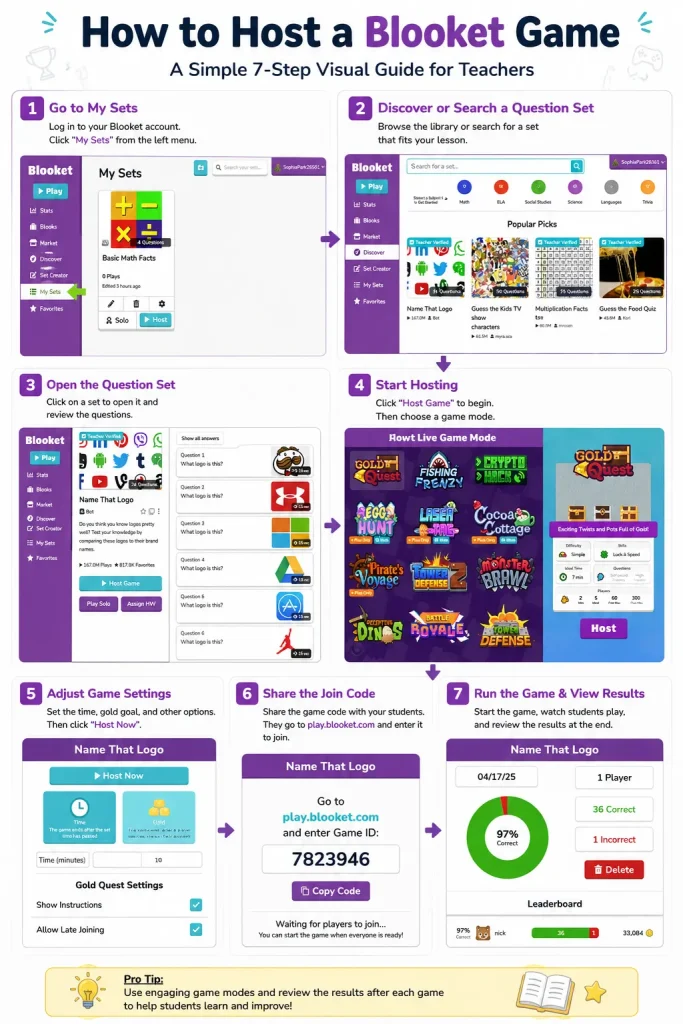
How to Host a Blooket Game Step by Step
Follow these simple steps to start a game with your class.
Choose a Question Set
First, choose the questions you want your students to answer. You can search the Blooket library for an existing question set or create your own.
Using an existing set can save time, especially when you need a quick classroom activity.
Pick a Game Mode
Next, choose a game mode. Blooket has several options, and each one gives students a different way to play.
Some modes are fast and competitive, while others focus more on strategy. Pick one that fits your lesson and your students.
Get Your Blooket Join Code
After choosing the game mode, Blooket creates a join code for your session. Students need this code to enter the game.
Keep the code visible so everyone can easily find it.
Give the Code to Students
Show the code on your classroom screen, write it on the board, or tell students the code.
Students can then go to the Blooket play page, enter the code, and join the waiting area.
Start the Game
Once your students have joined, check that everyone is ready and start the game.
Students can now answer questions and play the selected game mode. You can watch the activity while the game is running.
After the game ends, you can check the results and see how students performed.
What Can You Do From the Blooket Host Dashboard?
The Blooket dashboard helps teachers manage their games and question sets. It also makes it easier to find activities for future lessons.
Recent Games
Your recently hosted games can be easy to find again. This is useful when you want to use a similar activity with another class.
Favorite Question Sets
You can save useful question sets so you can find them quickly later.
Find Public Question Sets
Blooket has a library of question sets made by other users. You can search this library when you need questions about a certain subject or topic.
Can You Host Blooket Without an Account?
No. Teachers need an account to host a Blooket game.
Creating an account is free and only takes a short time. Once your account is ready, you can create games, save question sets, and manage your activities from your dashboard.
Students usually do not need an account to join a live game. They can use the Blooket join code provided by the teacher.
Can You Use Blooket for Solo Practice?
Yes. Blooket can also be useful when students need to practice on their own.
For example, a teacher can give students an activity to complete before a test or use it as extra practice after class. Students can work through the questions at their own pace.
Solo practice can also help when there are not enough classroom devices for every student to play at the same time.
Why Is Blooket Stuck on “Waiting for Host”?
Sometimes students may see a Waiting for Host message. This does not always mean there is a serious problem.
Here are a few things to check:
- The game has not started: Students can join before the teacher starts the game. Make sure you have selected the start button.
- Internet problems: A weak Wi-Fi connection can stop the game from loading correctly. Try refreshing the page.
- Wrong game code: Make sure students entered the current code correctly. A new session can have a different code.
- Browser problem: Refreshing the browser and joining again can often solve the issue.
If the problem continues, ask the student to refresh the page and enter the current Blooket join code again.
Tips for Hosting a Better Blooket Game
A few simple tips can help your game run smoothly.
- Use ready-made questions: Search the Blooket library before creating a new set. This can save you time.
- Choose the right game mode: Pick a fast mode for quick review and a strategy mode for longer activities.
- Keep the questions simple: Make sure the questions match your students’ age and learning level.
- Give students enough time: Avoid making the game too fast if students need more time to read and think.
- Check the results: Look at the results after the game to find topics that students found difficult.
- Use games as a learning tool: Blooket works best when the game supports your lesson instead of replacing teaching completely.
Frequently Asked Questions
Final Thoughts
Hosting a Blooket game is a simple way to make classroom review more enjoyable. Teachers can choose questions, select a game mode, share a Blooket join code, and let students learn through play.
With different game modes and question sets, teachers can use Blooket for revision, practice, homework, and classroom activities. The key is to choose games that match the lesson and help students understand the topic while having fun.